A background has a simple job in a talking-head video: help people follow what you are saying. It should leave room for the speaker and any text without creating more things to look at. You do not need a virtual studio to get that right.
Keep the room if it adds context
A workshop, classroom, or office can help explain the video. If the setting is useful but distracting, try blurring the video background. Check shelves, screens, and papers before sharing. Blur is a visual effect, so do not rely on it to hide confidential information; remove that information from the frame.
Use a plain background when text matters
A solid or quiet background gives captions and diagrams room to breathe. Choose a color that separates from both your clothes and the text. Test a frame with the longest caption you expect to use. A nice-looking empty frame can become crowded once you add words.
Match a replacement scene to the recording
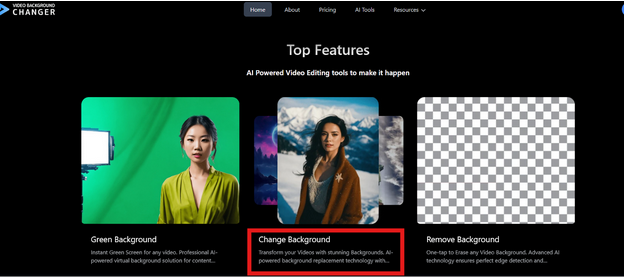
A bright outdoor scene can feel odd behind a face lit by a dim desk lamp. Look for similar light direction, brightness, and camera height. Use the video background changer to try the scene, then watch the result in motion. Avoid placing shelves or strong vertical lines directly behind the speaker’s head.
Check the final crop
If you need both a horizontal tutorial and a vertical clip, preview each crop. Keep important background details away from the edges and leave space where captions will sit. Check on a phone-sized preview before exporting; a background that looks subtle on a large monitor can feel crowded on a small screen.
Next step
Try a plain color and one realistic scene against the same clip. Keep the version that makes the speaker and captions easiest to follow. You can compare them with the background replacement tool.
Try the tool