
So, let's talk real quick. If you've ever recorded a video with a green screen and thought, "Okay… now what?" — you're not alone.
Here's what I think… removing a green screen should not feel like a technical nightmare. And you won't believe this, but today you can remove green screen from video online, automatically, and without installing any software.
Yep. A green screen remover online can now do all the heavy lifting for you.
Today you can remove green screen from video online—automatically—using our green screen remover tool (no installs, no complicated settings).
Let me walk you through it — nice and easy.
What Is a Green Screen Remover Online?
Well, in simple words, a green screen remover online is a web-based AI tool that: • Detects the green background in your video • Removes it automatically • Lets you replace it with something better
No editing software. No timelines. No confusing settings.
Can you imagine how much time that saves?
Why Use an Online Green Screen Remover Instead of Software?
Here's what I think… software tools like Premiere, After Effects, or DaVinci are powerful, sure. But they're also slow, complex, and overkill for most people.
An online green screen remover is different.
So, instead of spending hours learning: • Chroma key settings • Masking • Edge cleanup
You just upload your video and let AI handle it. Simple. Fast. Clean.
Traditional Chroma Keying vs AI-Based Semantic Segmentation
Both methods remove backgrounds, but they work very differently.
Traditional Chroma Keying works by selecting a color range (usually green) and making it transparent. In a controlled studio, this can produce great results. But quality drops quickly when lighting is uneven, compression artifacts appear, or the subject has green spill near edges.
AI-Based Semantic Segmentation works on object understanding rather than pure color selection. The model predicts subject masks frame by frame, then applies temporal stabilization to keep boundaries consistent across motion.
For modern creator workflows, semantic segmentation is usually more practical because it reduces manual tuning and handles real-world footage better than strict color-key workflows.
Common Challenges and How Server-Side AI Handles Them
The hardest parts of background removal are not simple edges. They are dynamic edge cases:
• Hair Transparency: fine strands need soft alpha handling, not binary cutouts. • Motion Blur: fast movement creates mixed pixels that break basic keyers. • Compression Noise: social clips and mobile footage often contain block artifacts. • Edge Flicker: frame-by-frame variation can cause visible mask jitter.
Server-side AI pipelines solve these issues better than lightweight browser-only tools because they can run heavier refinement stages and temporal checks at scale.
In practice, that means cleaner hair edges, fewer halos, smoother motion continuity, and more stable 4K exports without manually rebuilding masks.
How to Remove Green Screen from Video Online (Step-by-Step)
Alright, let's break this down into bite-sized steps.
Step 1: Upload Your Video — First, log in to videobackgroundchanger.com, open the Change Background page, and upload your green screen video.
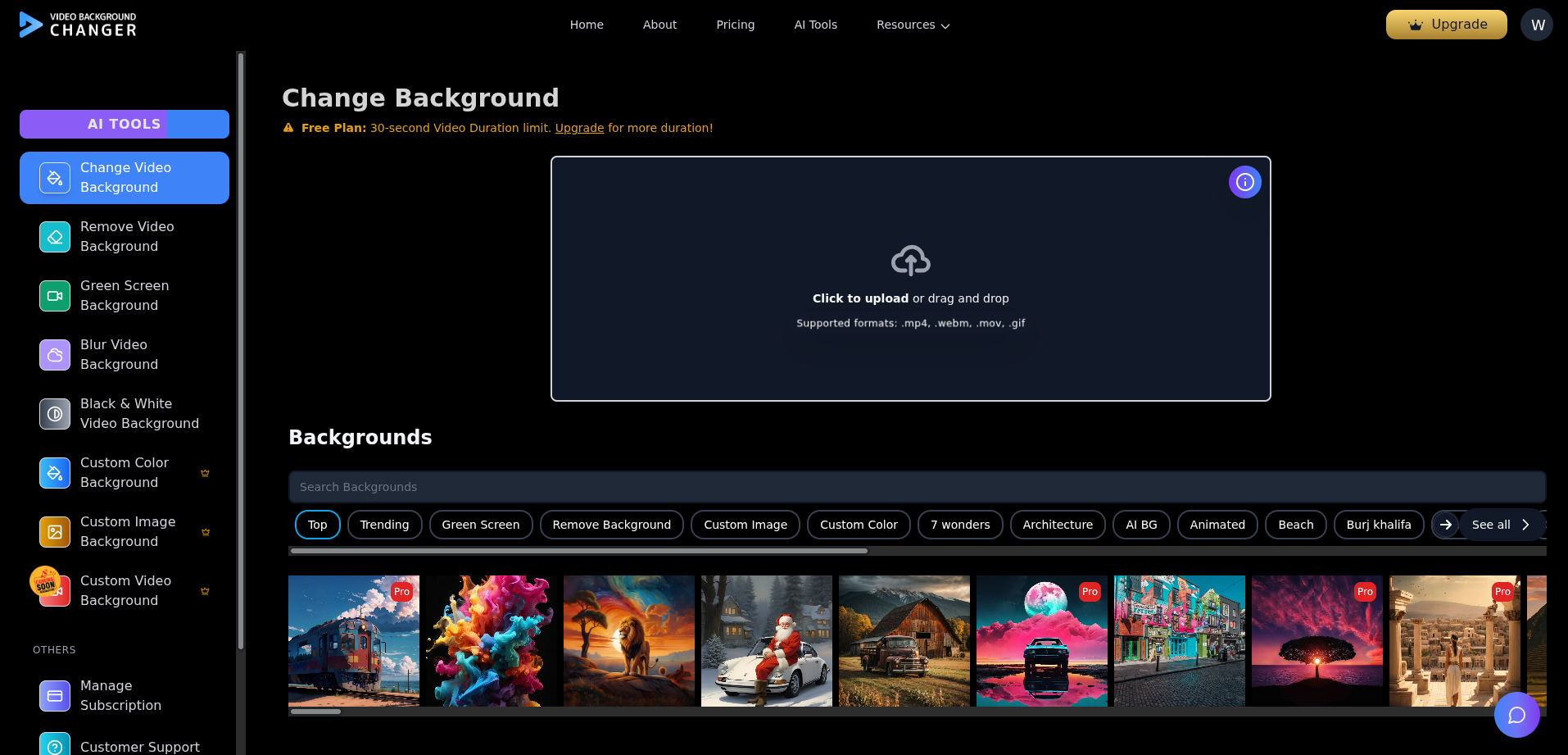
Any camera works. Phone, webcam, DSLR — all good.
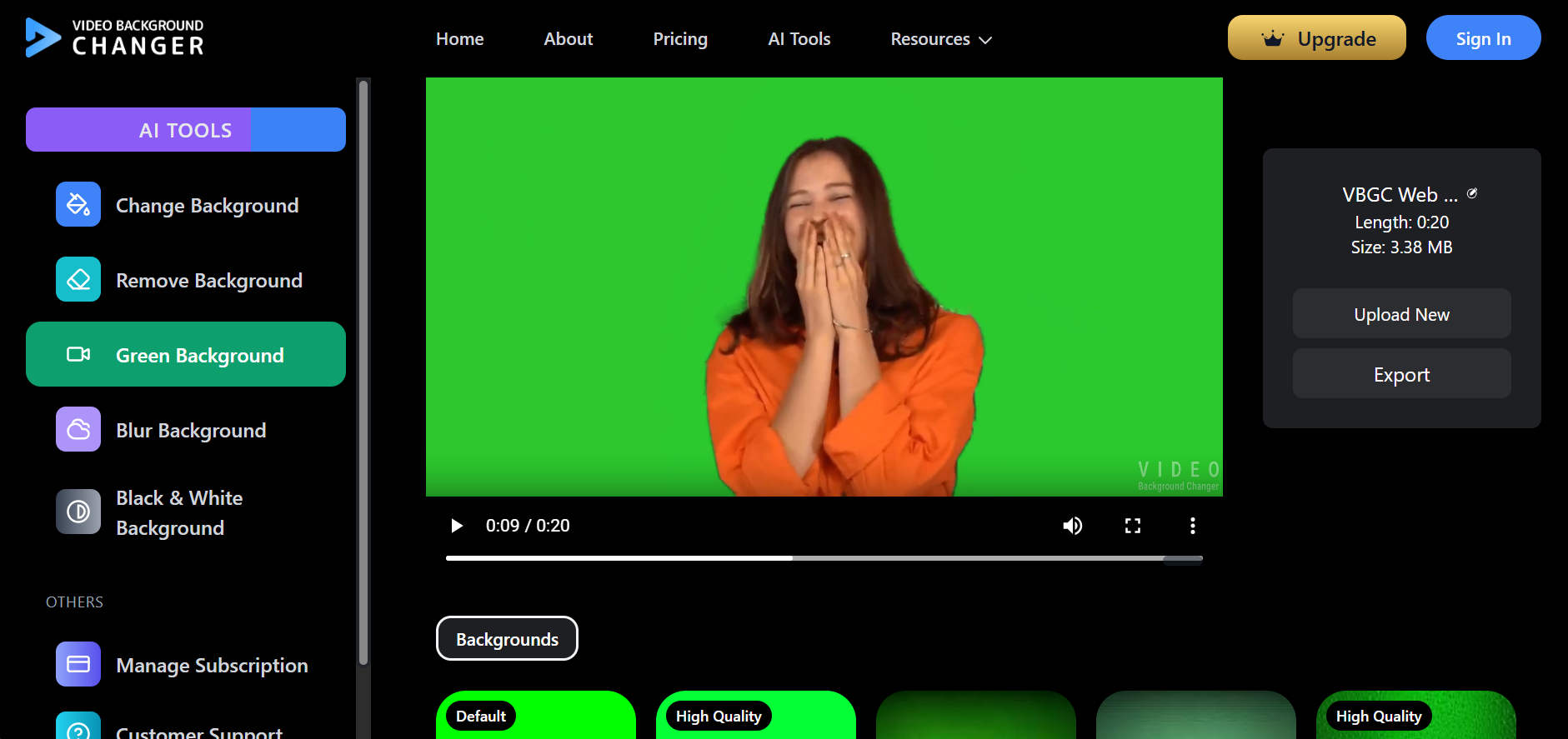
Step 2: Let the AI Remove the Green Screen & get video uploaded. Next, the AI automatically detects the green background. No sliders. No manual selection. Just wait a few seconds.
You'll see the green screen disappear almost instantly. Pretty cool, right?
Step 3: Choose What You Want to Replace the Green Screen With. Now comes the fun part. After that, you decide what replaces the green screen. You've got options 👇
Green Screen Replacement Options (Your Choice)
Option 1: Replace with a Custom Image (Paid) Want a branded background? Office wall? Studio look? Just upload your own image and place it behind your subject.
Perfect for: • YouTubers • Businesses • Online courses • Marketing videos
Option 2: Replace with a Fixed Color Well, sometimes simple is better. Choose a solid color background like: • White • Black • Gray • Brand color
This works great for clean, professional videos.
Option 3: Use Stock Backgrounds (free) Don't have your own image? No problem. You can select from available stock-style backgrounds and templates to instantly upgrade your video look. Easy win.
Step 4: Preview and Download
Finally, preview your video. If everything looks good — and it usually does — download it.
That's it. Green screen removed. Background replaced. Video ready.
Why This Green Screen Remover Online Works So Well
Here's what I think really matters: ✅ 100% online — no downloads ✅ AI-powered background removal ✅ Works in minutes ✅ Beginner-friendly ✅ Free tier available ✅ Paid plans are cheaper than traditional software
Honestly, this is why creators, marketers, and educators love using online tools instead of bulky software.
Who Is This Best For?
If you're wondering whether this is for you, ask yourself: • Do you make YouTube, TikTok, or Reel videos? • Do you record tutorials or presentations? • Do you want clean videos without editing skills?
If yes… this green screen remover online is made for you.
Frequently Asked Questions
Can I really remove green screen from video online without software? Yes. Everything happens in your browser. No installs needed.
Is it possible to remove a green screen without a physical green screen? Yes. AI semantic segmentation can isolate subjects in many non-studio scenes, though clean source footage still improves final quality.
How does 4K AI background removal work? 4K workflows combine high-resolution segmentation with temporal consistency logic so masks stay stable across frames instead of flickering.
Traditional chroma keying or AI segmentation for modern workflows? Chroma keying is excellent in controlled setups; AI segmentation is usually faster and more reliable in mixed lighting or creator-style footage.
Is the green screen remover free? Background removal and replacement with free stock images is available in the free tier. Custom image replacement and HD exports are part of paid plans.
Do I need perfect lighting? Good lighting helps, but the AI works well even with normal setups.
Can I use it on mobile? Yes. It works on mobile browsers, though desktop is smoother for editing.
If you’re comparing methods, here’s a walkthrough on how to remove green screen using CapCut, Premiere, DaVinci, or online AI — so you can pick the fastest workflow.
Conclusion
So, here's the bottom line. If you want to: • Remove green screen from video • Replace it with an image, color, or stock background • Do it online, fast, and without software
A green screen remover online is the easiest way to get there.
No stress. No learning curve. Just better videos.
What do you think — ready to try it?
If privacy is a deciding factor for your team, read Why Privacy Matters in AI Video Editing to compare private infrastructure, deletion policies, and secure processing workflows before you choose a tool.