
So, let’s be honest for a second. If you’re here, you’re probably thinking one thing: “I just want to remove the green screen from my video… why is this so complicated?”
You’re not alone. People search every day for how to remove green screen in CapCut, Premiere Pro, and DaVinci Resolve — and many end up frustrated.
All these tools work. But not all of them make life easy.
So let’s break it down. Simple. Clear. No fluff.
Option 1: How to Remove Green Screen in CapCut
CapCut is popular, especially for TikTok and Reels. But removing a green screen here isn’t exactly one click.
Typical steps include:
• Importing your video
• Adding it to the timeline
• Enabling chroma key
• Adjusting intensity, shadows, and spill
• Previewing and re-adjusting
• Exporting
It works — but doing this for multiple videos quickly becomes time-consuming. CapCut is fine for quick edits, but green screen removal still requires manual effort.
Option 2: How to Remove Green Screen in Premiere Pro
Premiere Pro is powerful, no doubt. But beginners often find green screen removal overwhelming.
The usual workflow:
• Import footage
• Apply Ultra Key
• Select green color
• Adjust tolerance and matte
• Suppress spill
• Fix edges
• Render
If you’re a professional editor, this is fine. If you just want a clean background fast — it’s overkill.
Premiere removes green screen well, but it’s slow and technical for simple needs.
Option 3: How to Remove Green Screen in DaVinci Resolve
DaVinci Resolve is loved by professionals, especially for color grading. But green screen removal here isn’t beginner-friendly.
You’ll deal with:
• Nodes
• Qualifiers
• Matte refinement
• Color corrections
• Manual cleanup
It escalates quickly. DaVinci is excellent for advanced workflows, but removing a green background takes more work than most people expect.
Why People Look for an Online AI Green Screen Remover
The reason is simple.
People don’t want:
• Timelines
• Nodes
• Sliders
• Long tutorials
They want:
• Upload
• Remove
• Replace
• Download
That’s it.
And this is where Online AI Green Screen Removal comes in. If you want the fastest workflow, try an online green screen remover that removes the background automatically—no nodes, timelines, or sliders.
How to Remove Green Screen from Video Using Online AI
Here’s how it works with an online AI tool like Video Background Changer.
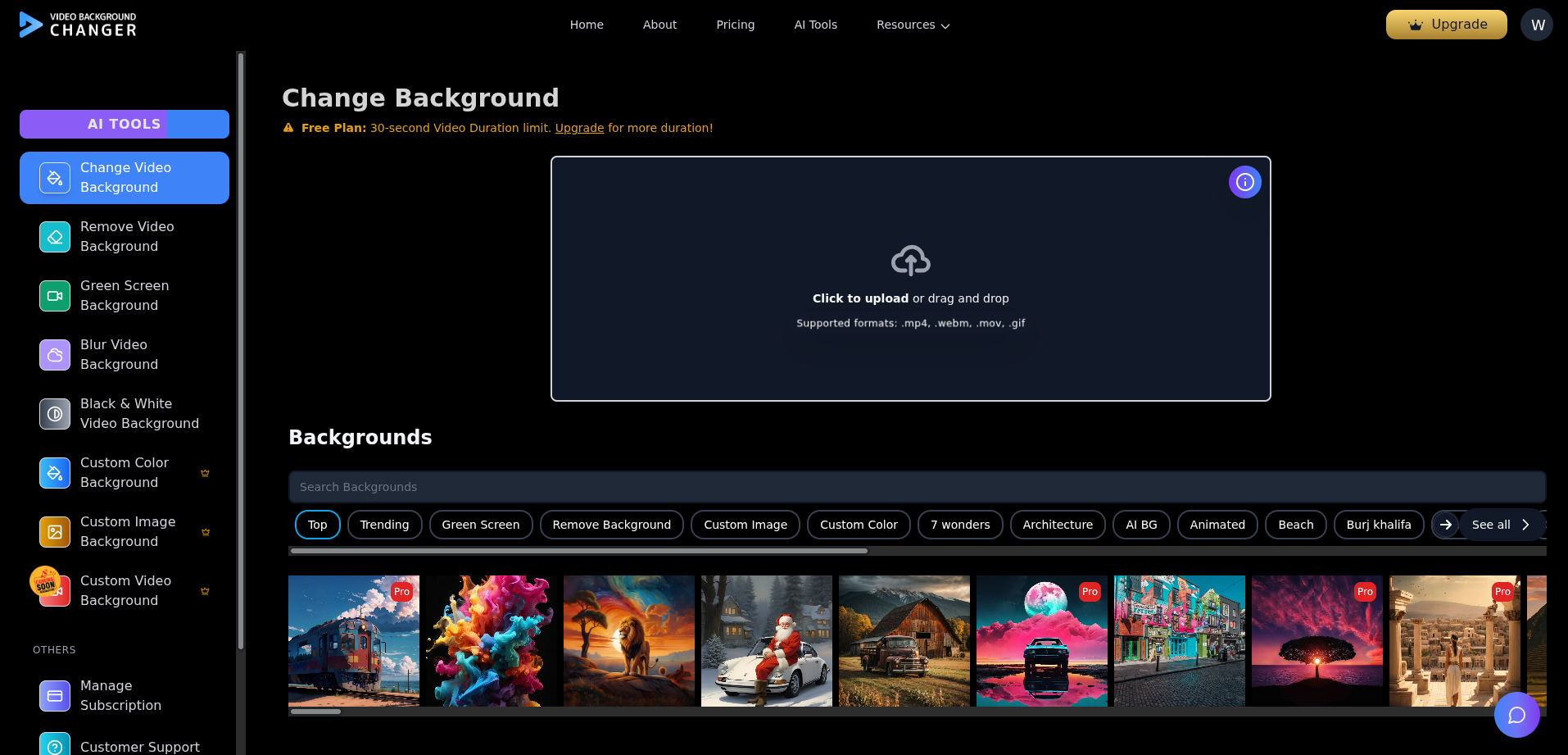
Step 1: Upload Your Video
First, log in to the VBGC website and upload your green screen video.
Phone, webcam, DSLR — anything works.
Step 2: AI Automatically Removes the Green Screen
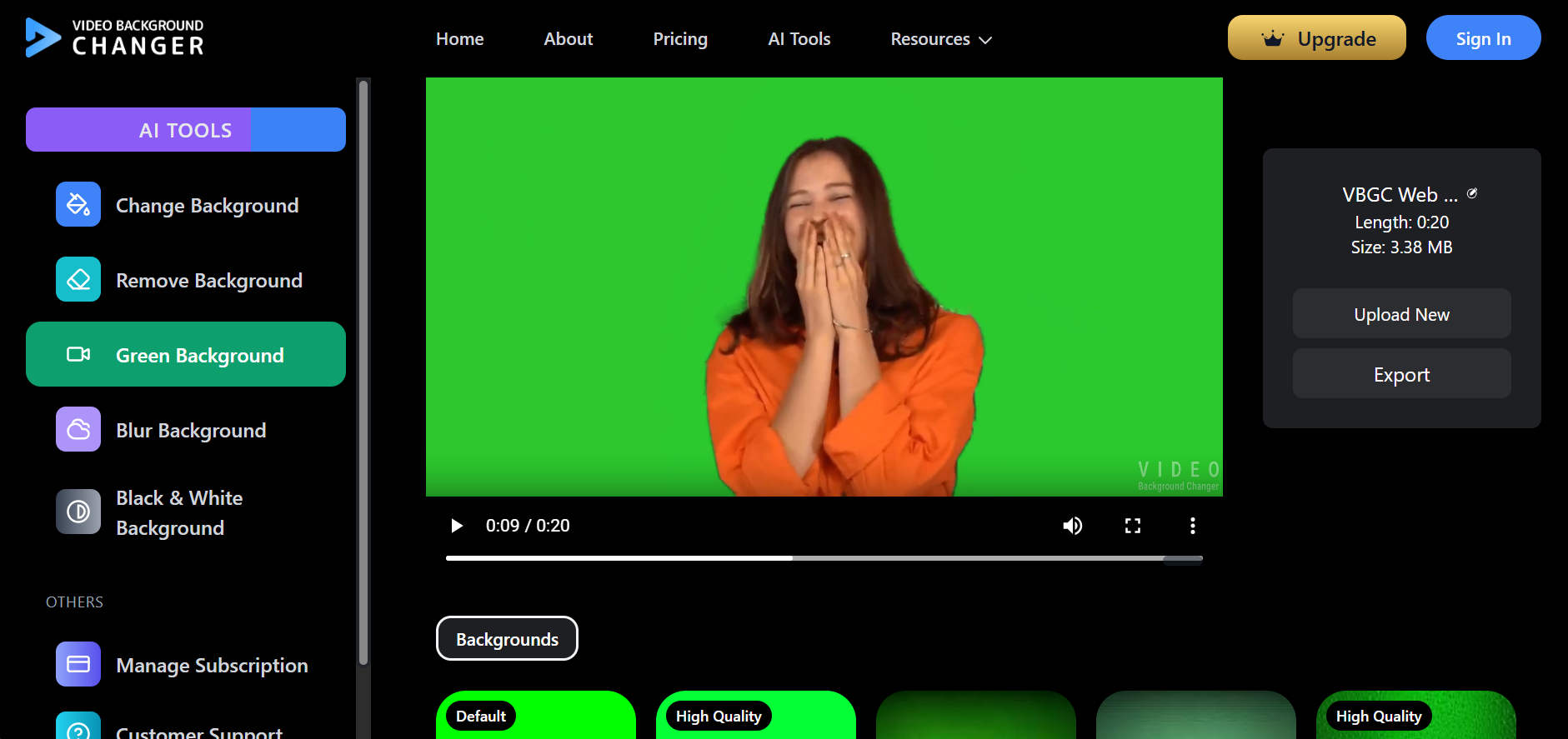
No chroma key settings.
No manual selection.
The AI detects and removes the green background automatically.
In just a couple steps, you can remove the background from your video online and immediately replace it with a solid color, stock scene, or your own image.
Step 3: Replace the Background
You can:
• Use a solid color
• Choose free stock backgrounds
• Upload a custom image (paid)
Step 4: Preview and Download
Preview your result and download the final video.
No software. No learning curve.
Software vs Online AI: Quick Comparison
CapCut: Medium skill, manual work, software required
Premiere Pro: High skill, heavy manual adjustments
DaVinci Resolve: High skill, complex workflow
Online AI: Beginner-friendly, automatic, no installation
When you’re creating content regularly, speed and simplicity matter.
Who Should Use Which Option?
CapCut, Premiere, or DaVinci
→ Best for professional editors already using these tools daily
Online AI Green Screen Removal
→ Best for creators, marketers, educators, and businesses who want fast, clean results without complexity
Frequently Asked Questions
-
What is the easiest way to remove green screen from video? The easiest way is using an online AI green screen remover. You upload your video and the background is removed automatically without manual editing.
-
Can I remove green screen from video without software? Yes. Online AI tools allow you to remove green screen directly in your browser without installing CapCut, Premiere Pro, or DaVinci Resolve.
-
Is online green screen removal better than CapCut or Premiere Pro? For speed and simplicity, yes. Traditional software requires manual chroma key adjustments, while AI tools work automatically.
-
How long does AI green screen removal take? Usually just a few minutes, depending on video length. This is much faster than editing manually.
-
Can I replace the green screen with a custom background? Yes. You can replace it with solid colors, stock backgrounds, or custom images (often available in paid plans).
-
Is green screen removal free? Basic removal is often available for free. HD exports or custom backgrounds may require a paid plan.
-
Does AI green screen removal work on mobile? Yes. Most online tools work on mobile browsers, though desktop provides a smoother experience.
Conclusion
So what’s the takeaway? Yes — you can remove green screen using CapCut, Premiere Pro, or DaVinci Resolve. They all work.
But if you want to remove green screen fast, avoid heavy software, replace backgrounds easily, and do everything online, then online AI is the simplest path.
No stress. No tutorials. Just better videos.
Once the key is clean, the fun part is choosing what comes next—here are some green screen background ideas for videos you can use for content, lessons, or promos.
If you want a direct browser workflow, this step-by-step green screen remover online guide covers upload, removal, replacement, and export in one place.